Paths and conditions
Use a Filter when one route should either continue or stop. Use Paths when different conditions should send the same event through different branches.
Filter step
A Filter evaluates rule groups against the Trigger and available earlier Step outputs.
- A match continues through the default route.
- A non-match uses the filtered outcome, so ordinary downstream Steps on that branch are skipped.
- An invalid rule produces an error outcome.
Use the sample tester in the editor before relying on a complex Filter in production.
Paths step
A Paths step is a splitter with named output routes. Each route uses one mode:
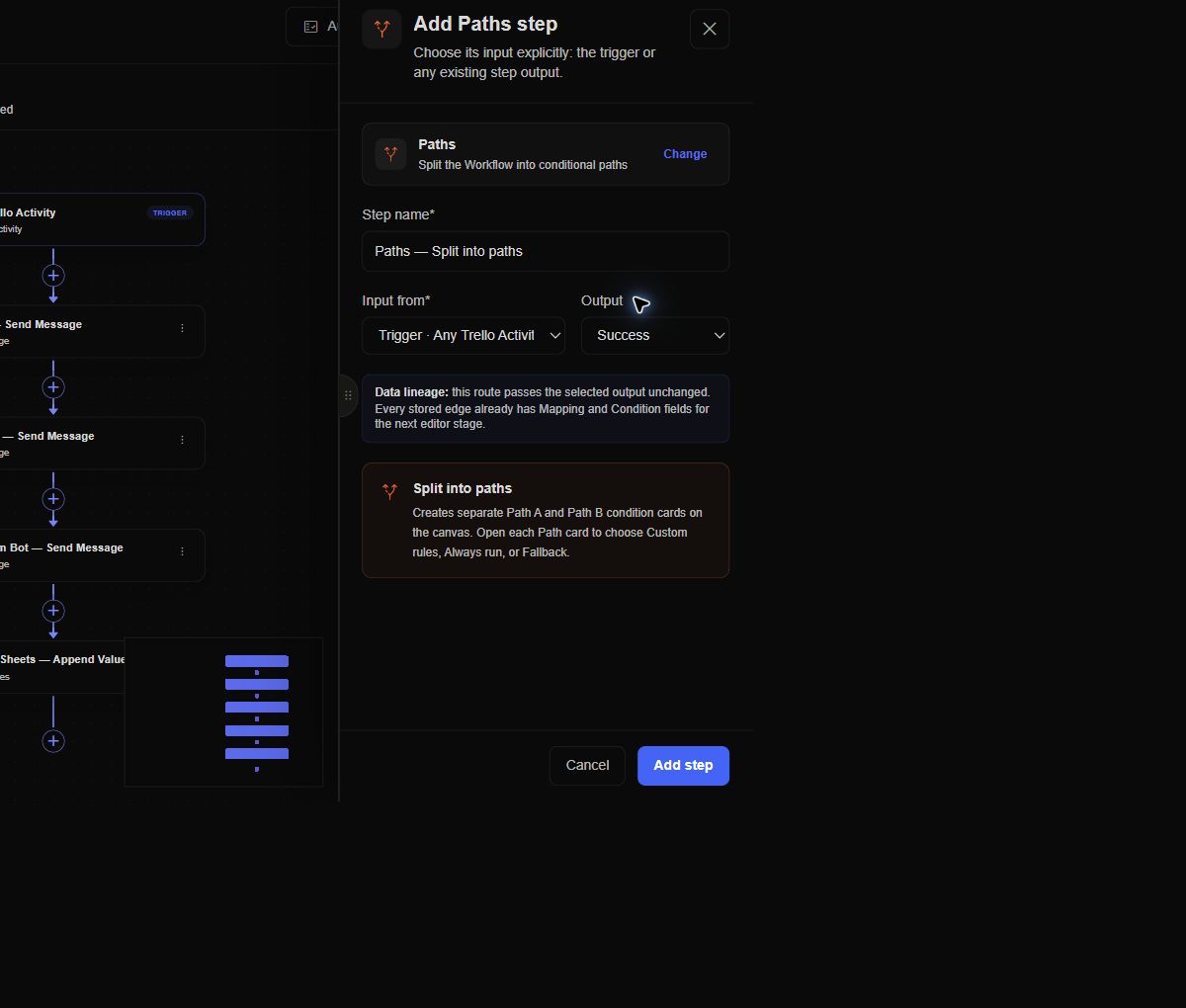
Choose the input explicitly when adding Paths. The new splitter starts with Path A and Path B cards that you can open and configure independently.
- Custom rules run the Path when its visual conditions match.
- Always run runs the Path for every event.
- Fallback runs only when no other Path ran.
Matching Paths run sequentially from left to right. More than one custom or always Path may run for the same event. A splitter can have only one fallback Path.
Design mutually exclusive routes
If exactly one outcome should occur, make conditions mutually exclusive and add a fallback. For example:
Amount >= 1000  → Enterprise review
Amount < 1000   → Standard processing
Fallback        → Invalid or incomplete event
If several outcomes should occur, let multiple Paths match intentionally—for example, one branch records an event while another sends an alert.
Data available to conditions
Paths can read the Trigger and every earlier Step available at the splitter. They cannot read a Step that lives downstream or only on another parallel branch.
Error routes
Executable Steps can expose an error route. Connect it when the Workflow should handle a failure explicitly—for example, send an alert, record the failure, or call a fallback Action. The error branch receives a normalized failure envelope.
If a Step fails after retry handling and has no connected error route, the Workflow run fails. If an error route exists, execution can continue through that route.
Skipped Steps
Audit marks Steps as skipped when their route was not selected, a Filter stopped the branch, or the Step was disabled. Skipped is a routing result, not automatically an error.
Safe rollout
- Build and test conditions with representative samples.
- Activate the Workflow and produce a controlled event for each route.
- Confirm selected and skipped Steps in Audit.
- Test the fallback and error route deliberately.
- Check for duplicate side effects when multiple Paths can match.
See Data mapping for condition inputs and Runs and errors for route inspection.